






3D Digital Asset Management Software

Organize models, textures, renders, product variants, versions and production files in one searchable 3D asset management platform. Track every asset
from creation and review to approval, publishing and reuse across Vivid.Studio, Vivid.Player, product configurators, eCommerce and visual AI workflows.
3D Digital Asset Management Software
Trusted by teams managing complex 3D product catalogues

Interactive 3D by the numbers

1
Central Library
Every model, texture, render, variant and supporting file
8
Production Stages
From brief and modeling to approval and publishing
5+
Core 3D Formats
Web-ready, source and AR assets in one system

Why You Need a 3D Asset Management System

As 3D catalogues grow, generic folders, spreadsheets and disconnected project tools make it harder to find the correct asset,
control versions and publish content consistently.
One Source of Truth for All 3D Assets
Keep source models, optimized files, textures, renders, product variants and supporting documents connected to the same product record, so teams identify the approved asset without searching across multiple drives, folders or chat tools.
Faster Reuse Across Teams and Channels
Reuse approved assets across product pages, configurators, marketing renders, sales tools, Vivid 3D. Studio scenes, Vivid 3D. Player experiences and selected visual AI applications, instead of recreating the same content for every campaign, market or channel.
Consistency and Brand Control
Keep product names, materials, visual standards, configuration data and approved versions aligned across teams, reducing the risk of outdated or incorrect assets reaching a customer-facing experience.

Organize, Store and Reuse Every 3D Asset

Centralized 3D Library
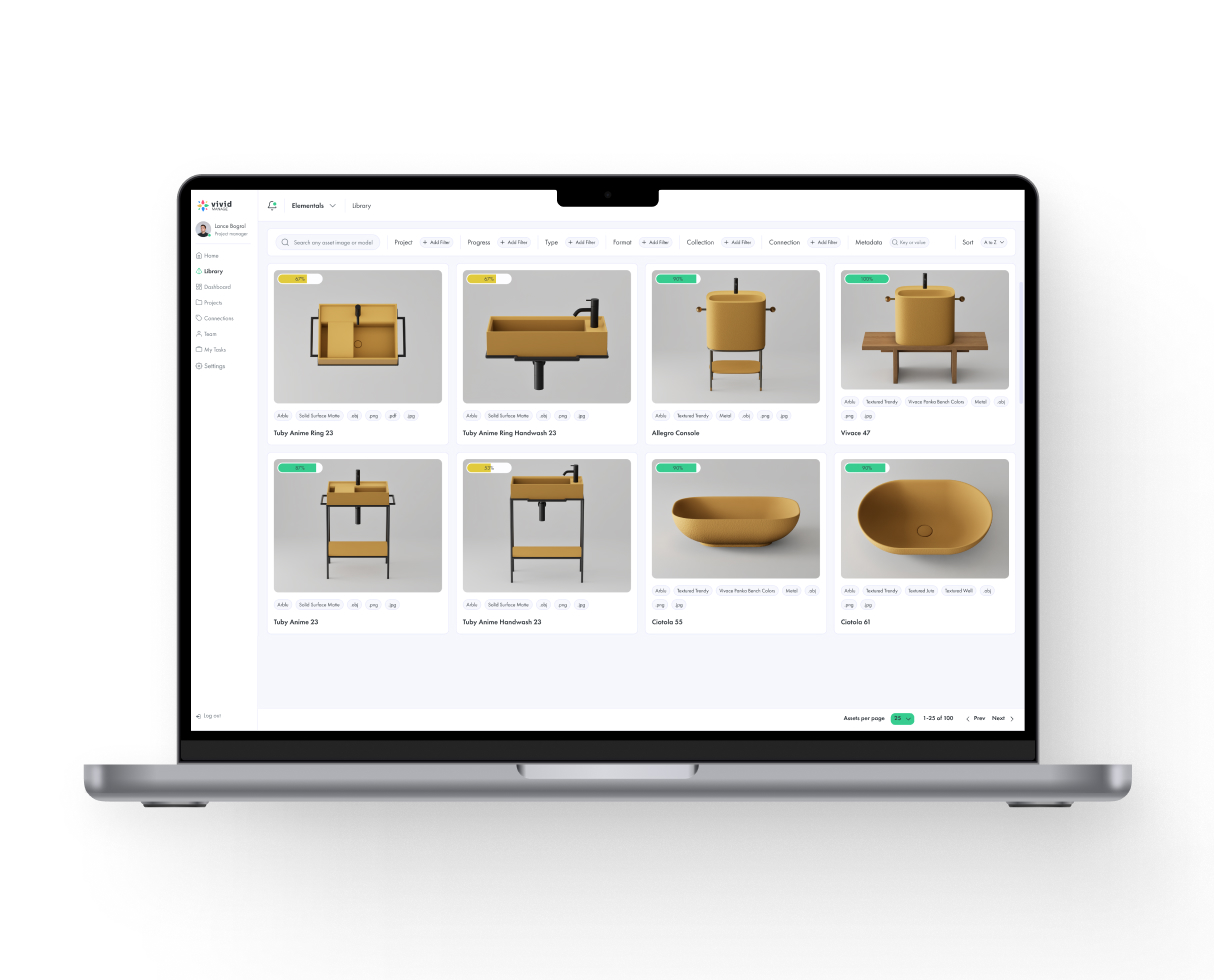
Bring models created by the Vivid 3D team, internal artists, agencies and existing pipelines into one searchable library: source and optimized models, textures and materials, renders, thumbnails, product variants, technical references, scene files and delivery packages. Every file stays connected to the product, project, client and workflow it belongs to. Contextual link: Explore 3D Content Workflows
Tags, Search and Metadata
Find the right asset using product names, SKUs, collections, categories, materials, file types, projects, owners and production status. Use structured metadata and saved views (for example Awaiting client review, Approved web assets, Ready for publishing) to organize large catalogues and keep naming consistent.
Previews and Full Asset Records
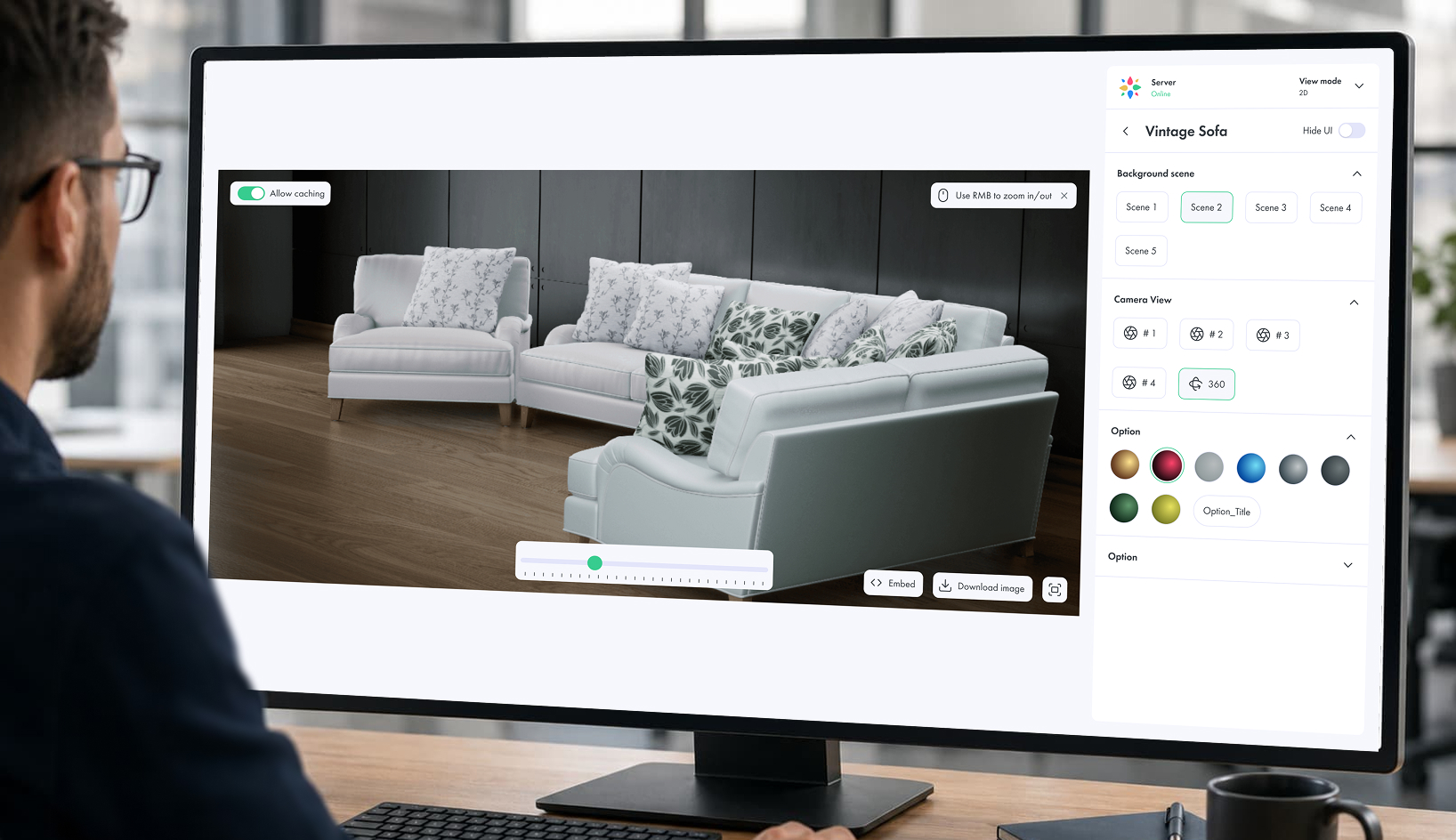
Open supported 3D assets directly in the browser - rotate, zoom and review the model alongside its metadata, textures, variants and related renders. Open any product record to access its complete package through tabs like Overview, 3D Files, Renders, Variants, Versions and Activity. Contextual link: Explore the 3D Product Viewer
Product-Aware Variant Management
Park it in their driveway before they buy.
Connect 3D assets with real product data instead of managing every colour or material as an unrelated file. When a product is connected with Vivid.Build, the Asset Library can display its materials, finishes, components and configuration options as part of the same product record.

Filter assets by colour, material, finish, size or configuration, preview visual options without a separate application, and keep renders, optimized models and customer-facing experiences connected to the correct product option.


Reuse the same product and variant structure across Vivid 3D. Studio, Vivid 3D. Player and configurable product experiences.
Book a Demo
What Is Visual CPQ

Collaboration, Review and Team Access

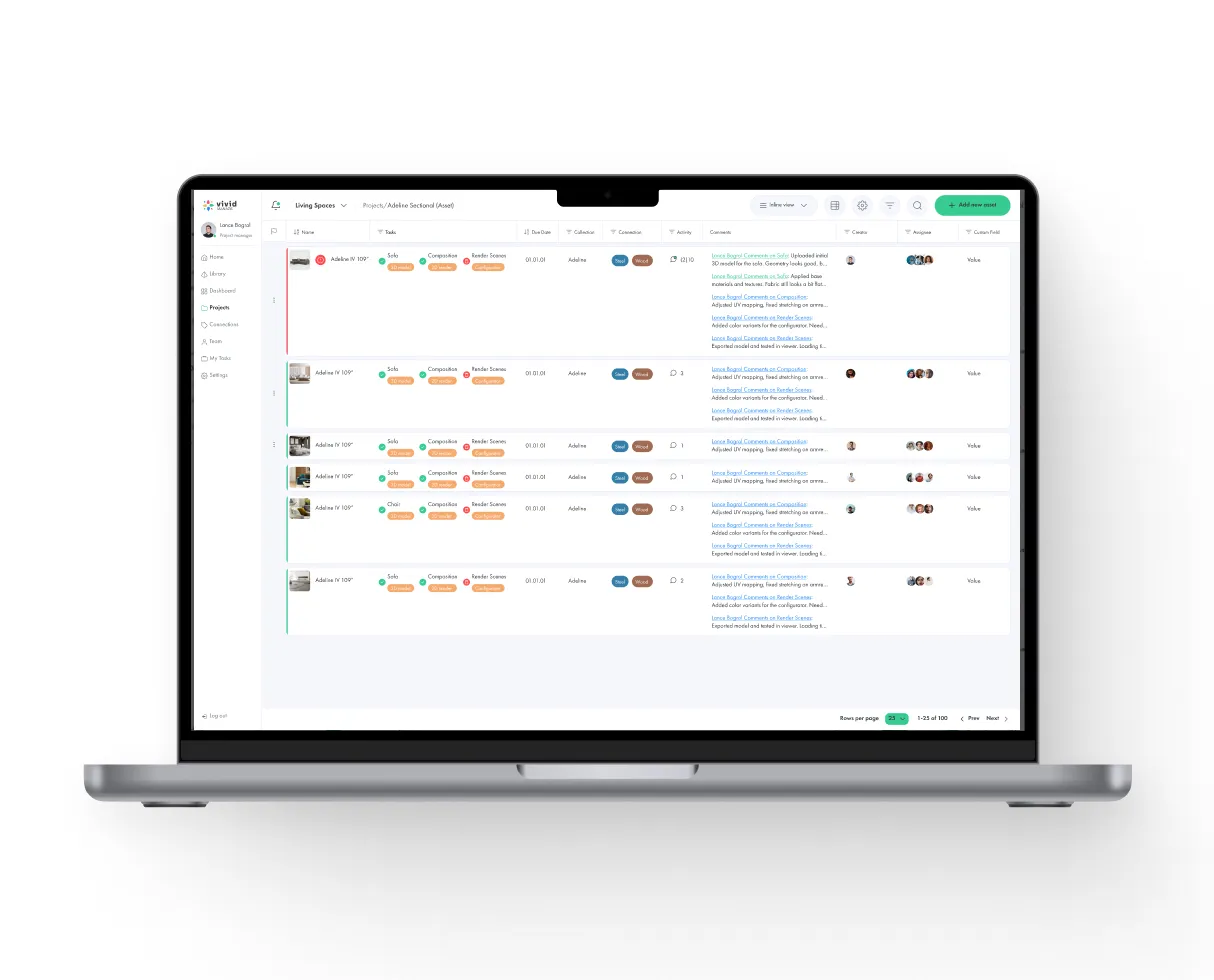
Keep every review, decision and responsibility visible inside the same workspace, so internal teams,
external partners and clients can collaborate without losing context.
In-Context Review
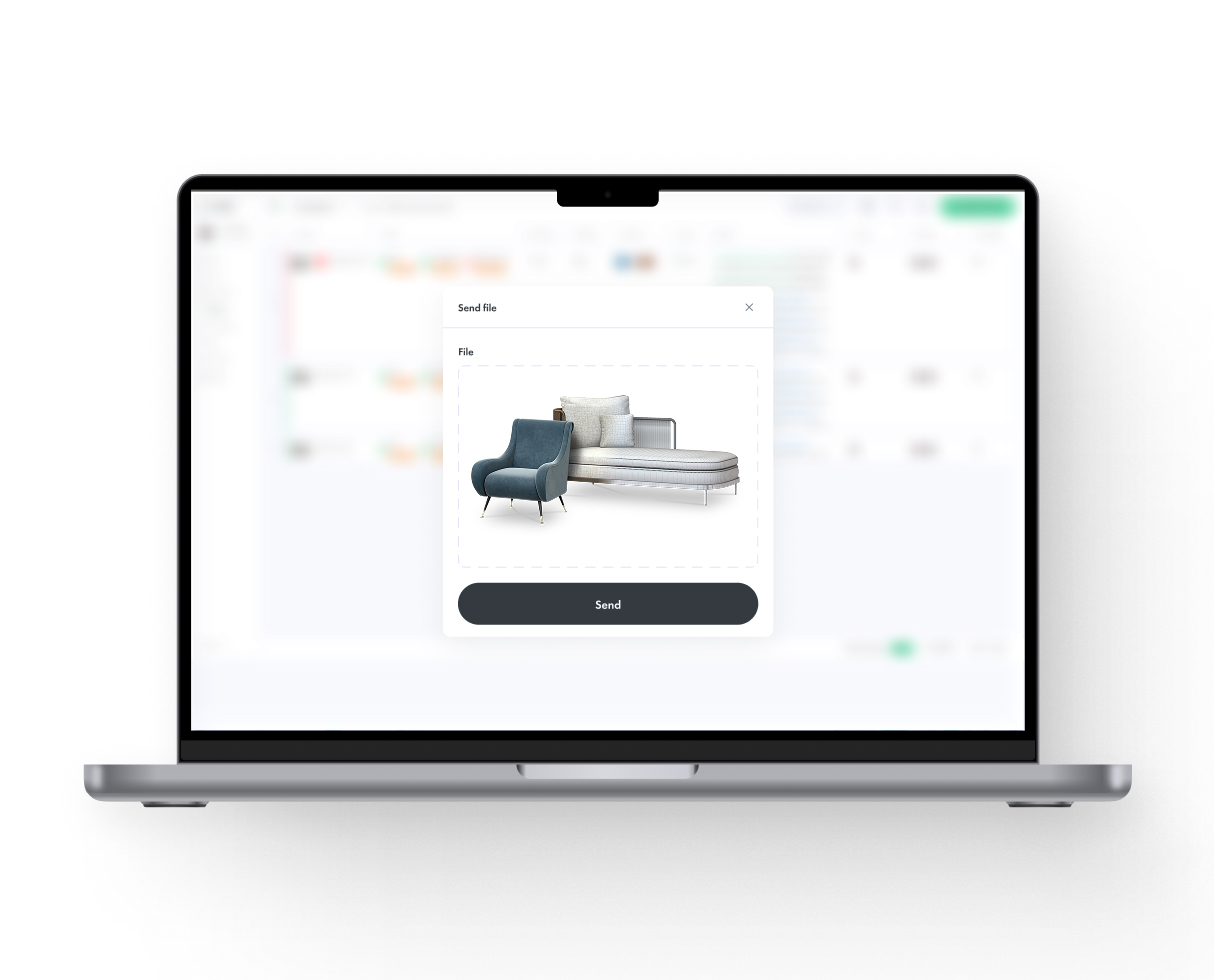
Review 3D assets directly alongside the product information and production context. Leave comments, request changes and keep feedback attached to the relevant asset instead of moving discussionsbetween email, chat and screenshots.
Clear Approval Process
Assign reviewers, track whether an asset 
is awaiting review, requires changes or is approved, and give teams a clear understanding of what is ready for the next stage.
Team and Client Access
Give internal teams, external artists and clients access to the content relevant to their role or project. Control who can view, contribute, review or manage assets while keeping unrelated projects and content separated.

Integrations &
Supported Formats

Bring source files, web-ready models, rendered outputs and product data into one connected workflow through APIs, imports, exports, embeds or custom implementation.
Connected systems:
PIM
DAM
PLM
CPQ
ERP
CMS
Сloud storage
Internal product databases
Supported 3D formats:
GLB
glTF
OBJ
FBX
USDZ
Supported CAD conversion
Platforms & destinations:
Shopify
Adobe Commerce
WooCommerce
Salesforce Commerce Cloud
PIM/CMS
Unity
Unreal Engine
Blender
Maya
Сustom WebGL
Сustom APIs
Image & render formats:
 PNG
JPG
WebP
Transparent backgrounds
Multi-angle render bundles
Connected Vivid 3D products:
Vivid 3D. Studio
Vivid 3D. Player
Vivid 3D. Build
3D Content Workflows
Publishing and Integration
Synthetic Data for Computer Vision

Vivid 3D Door Visualizer

Let buyers customize doors visually before they request a quote. Support front doors, entry doors, interior doors, sliding doors, patio doors and bi-fold systems.
Panel, glass and hardware visualization
Front door color preview
Handle, lock and threshold options
Interior and exterior door styles
Patio, sliding and bi-fold door support

Vivid 3D Window and Door Configurator

Turn your product catalog into an interactive 3D configuration experience. Customers and dealers can configure dimensions, frame materials, colors, opening types, glazing, hardware, handles, grids and finishes while seeing the final product in real time.
Real-time 3D window and door visualization
Frame, material, color and hardware switching
Support for dimensions and product rules
Guided logic for valid configurations
Desktop, mobile, showroom and dealer-ready experience

Vivid 3D Visual CPQ and Quote Flow

Connect visual configuration with business logic. Vivid 3D can support pricing, quoting, option dependencies, dealer handoff and integration with existing CPQ, CRM, PIM, ERP or eCommerce systems.
Quote-ready product configuration
Option dependencies and validation
Dealer quote flow support
Saved configuration IDs
PDF summaries and configuration outputs
Integration-ready architecture

Vivid 3D Window Visualizer

Create a visual product experience for window systems, replacement windows, custom windows and glazing packages.
Frame and sash style preview
Grid, glazing and glass package visualization
Color and material switching
Replacement window visualization
Exterior and home context previews

Vivid 3D Dealer Portal Experience

Give dealers and resellers a guided visual sales tool. Instead of relying only on PDFs and catalogs, sales teams can build configurations with customers, explain options visually and create cleaner quote handoffs.
Dealer-ready guided configuration
Product logic and valid option control
Quote request and lead capture support
Saved configurations
Shareable build links
Online and showroom sales support

Vivid 3D AR Door and Window Viewer

Let customers preview doors, windows and exterior products in their real environment. AR helps buyers understand scale, style, color, glass, frame proportion and how the product will look on a home or building.
True-to-scale AR preview
Mobile-ready experience
Useful for front doors, windows and patio doors
Helps customers validate style before quote request
Confidence step before purchase

Vivid 3D Studio for Product Renders

Scale premium visuals without producing new photography for every window, door, color, panel, glass or hardware combination. Generate consistent renders from one reusable 3D asset base.
Configured product renders on demand
Consistent visuals across PDPs, ads and dealer tools
Fast iteration for new finishes and product lines
One asset base for many content formats
Reduced dependency on physical sample photography

How 3D Asset Management Works

Get Started
Step 1
Upload and Organize
Upload existing models, production files and references, or receive assets created through the Vivid 3D content pipeline, and add product data, tags, metadata, project info and responsible team members.
Step 2
Manage and Version
Track modeling, texturing, QA, review and approval, keeping revisions, comments, materials, renders and product variants connected to the correct asset.
Step 3
Distribute and Publish
Use approved assets in Vivid.Studio, Vivid.Player, product configurators, eCommerce, marketing content and selected visual AI workflows.
Step 1
Upload and Organize
Upload existing models, production files and references, or receive assets created through the Vivid 3D content pipeline, and add product data, tags, metadata, project info and responsible team members.
Step 2
Manage and Version
Track modeling, texturing, QA, review and approval, keeping revisions, comments, materials, renders and product variants connected to the correct asset.
Step 3
Distribute and Publish
Use approved assets in Vivid.Studio, Vivid.Player, product configurators, eCommerce, marketing content and selected visual AI workflows.
Step 1
Upload and Organize
Upload existing models, production files and references, or receive assets created through the Vivid 3D content pipeline, and add product data, tags, metadata, project info and responsible team members.
Step 2
Manage and Version
Track modeling, texturing, QA, review and approval, keeping revisions, comments, materials, renders and product variants connected to the correct asset.
Step 3
Distribute and Publish
Use approved assets in Vivid.Studio, Vivid.Player, product configurators, eCommerce, marketing content and selected visual AI workflows.

Why Vivid 3D

A product-aware 3D DAM connected to content production, configuration, visualization and AI workflows.
Built to Scale
Manage individual product lines or large catalogues with thousands of assets, variants and outputs, using structured metadata, production statuses and repeatable workflows across internal teams, external artists and multiple projects.
Secure and Reliable
Keep models, textures, renders and project information inside one controlled workspace, managing access by team and project while retaining version and activity records.
Fits Your Workflow
Connect Vivid 3D with product data, commerce systems,
creative tools and custom applications through APIs, imports, exports and implementation support, adapting production stages, metadata and delivery to each organization.

Use Cases by Industry

FAQ

What is 3D digital asset management?

3D digital asset management is the process of organizing, storing, versioning, reviewing and distributing 3D models and related content. A 3D DAM keeps models, textures, renders, metadata, product variants and production information connected in one searchable system.

How is 3D DAM different from a regular DAM?

A regular DAM primarily manages images, videos and documents. A 3D DAM is designed to handle 3D formats, interactive previews, textures, materials, model versions, product variants and specialized production workflows.

How is a 3D asset library different from cloud storage?

Cloud storage organizes files and folders. A 3D asset library also provides searchable metadata, browser previews, version history, production status, product relationships, review workflows and publishing connections.

How do I manage 3D assets?

Start by creating a central asset structure, defining naming and metadata standards, assigning production statuses and connecting every model with its textures, renders, variants and versions. A 3D asset management platform helps teams apply this structure consistently at scale.

Does Vivid 3D support 3D asset versioning?

The platform can keep revisions and production history connected to the same asset. Teams can identify the current approved version and retain access to earlier files and change information.

Which 3D formats are supported?

Common workflows can include GLB, glTF, OBJ, FBX, USDZ and supported CAD source formats. The exact upload, preview, conversion and export options depend on the selected workflow and should be confirmed for each implementation.